Early test version. The AI features shown on this site (the analyst, the news briefs and the AI teacher) are switched off for now. Everything else is in the app.

The iPhone app

This is what a lesson looks like.

Real screens from the app, in the order a new learner meets them. It works like a language app: one path, short steps, instant feedback. The only difference is the subject.

Early test version. App 1.0, website built 19 November 2026. The app is not on the App Store yet, so this page shows what it looks like.

Step 1 · Your path

One path, one next step

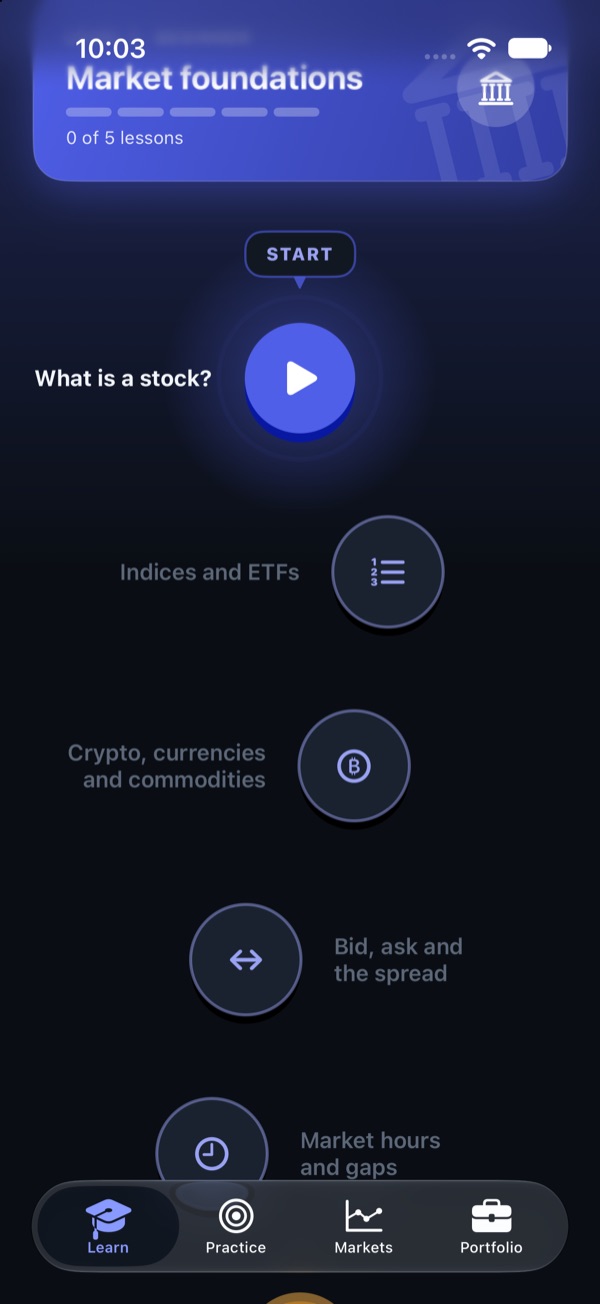
The app opens on a single winding path of short lessons. The glowing circle is your next lesson. Finish it and the next one opens. Nothing to choose, nothing to set up. There is a short placement test for people who already know the basics.
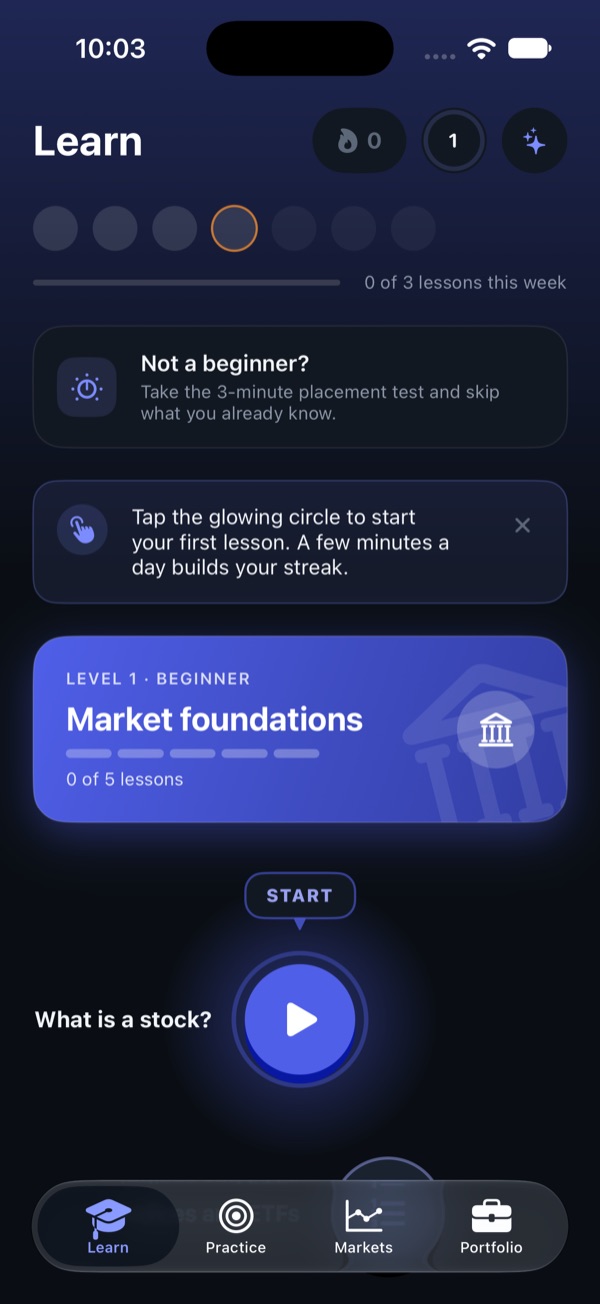
The Learn tab for a new learner: a first lesson called What is a stock, with a glowing Start button
The learning path: a winding line of lesson circles, with the first one open and the rest waiting
Step 2 · Starting a lesson

You are told what is coming

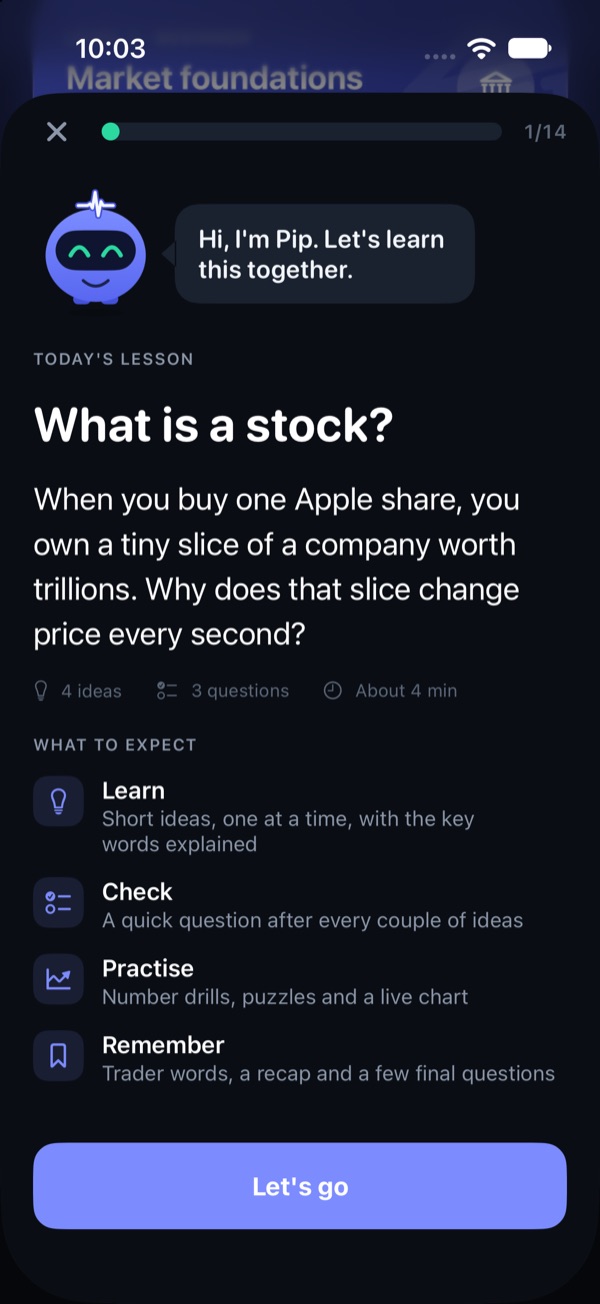
Every lesson begins by saying how long it takes and what it will ask of you: short ideas, quick checks, some practice, then a recap. Aurel, the guide, keeps you company. The bar at the top shows how far through you are.

The start of a lesson: a guide called Aurel says hello, with the lesson title, a count of ideas and questions, and what to expect
Step 3 · One idea at a time

Short, and no jargon left unexplained

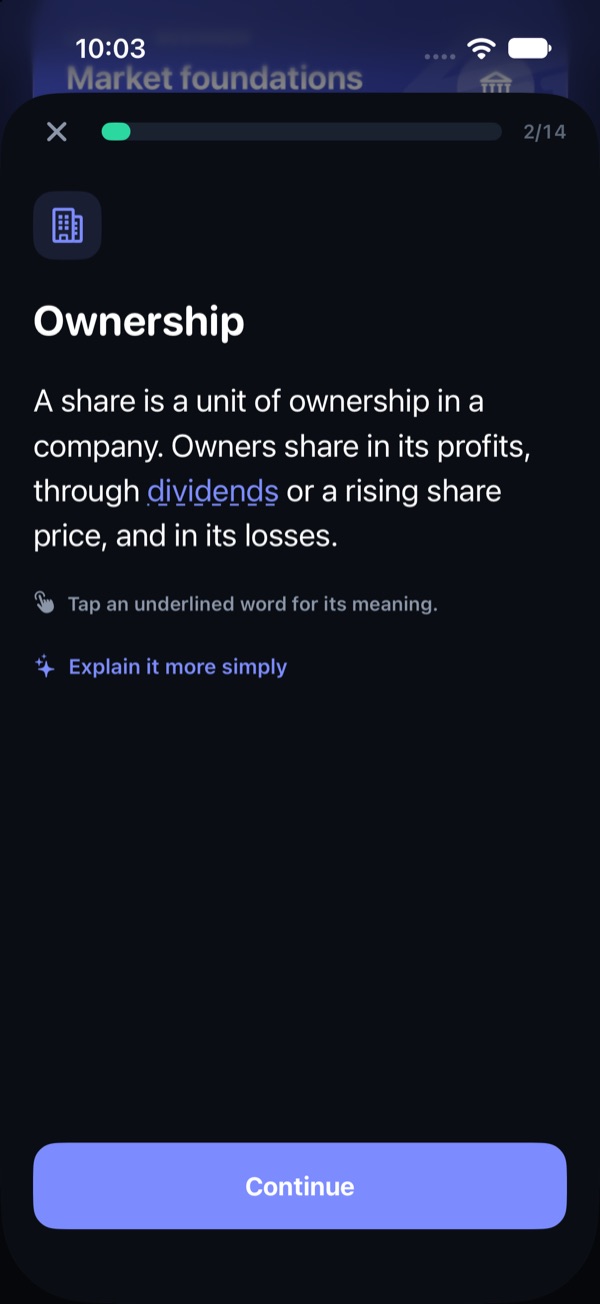
Each screen is one idea in plain English. Underlined words open a plain meaning when you tap them, so a beginner is never left guessing what a word means. "Explain it more simply" asks for another way of saying it.

A lesson idea on Ownership, with the word dividends underlined and a button to explain it more simply
Step 4 · Checking it stuck

A quick question after every couple of ideas

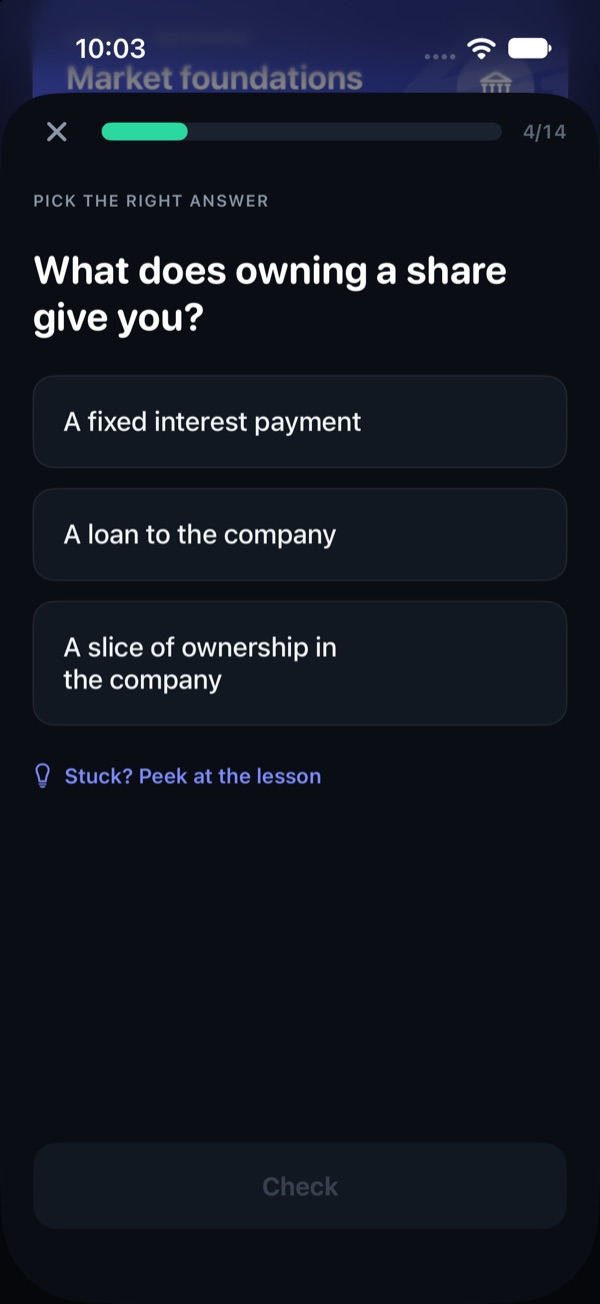
Pick an answer and tap Check. If you are stuck, you can peek at the idea the question is about. A peek still counts, it just does not add to your streak of right answers.

A multiple choice question: What does owning a share give you, with three answers and a Stuck button to peek at the lesson
Step 5 · Right or wrong

Instant feedback, and always the reason

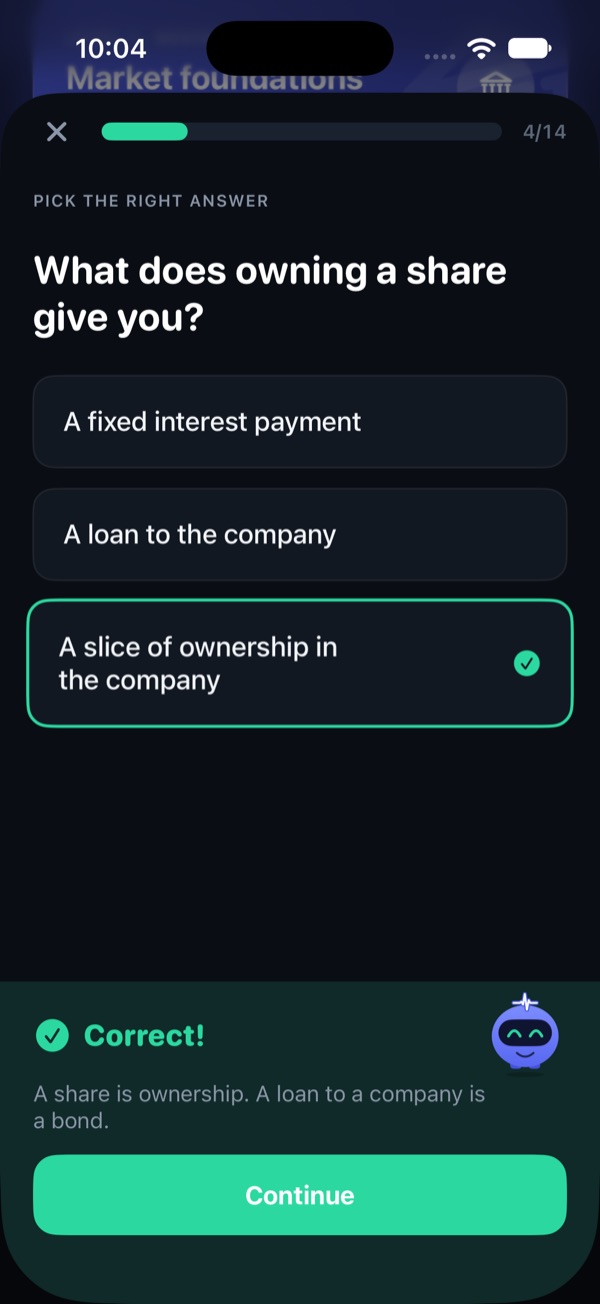
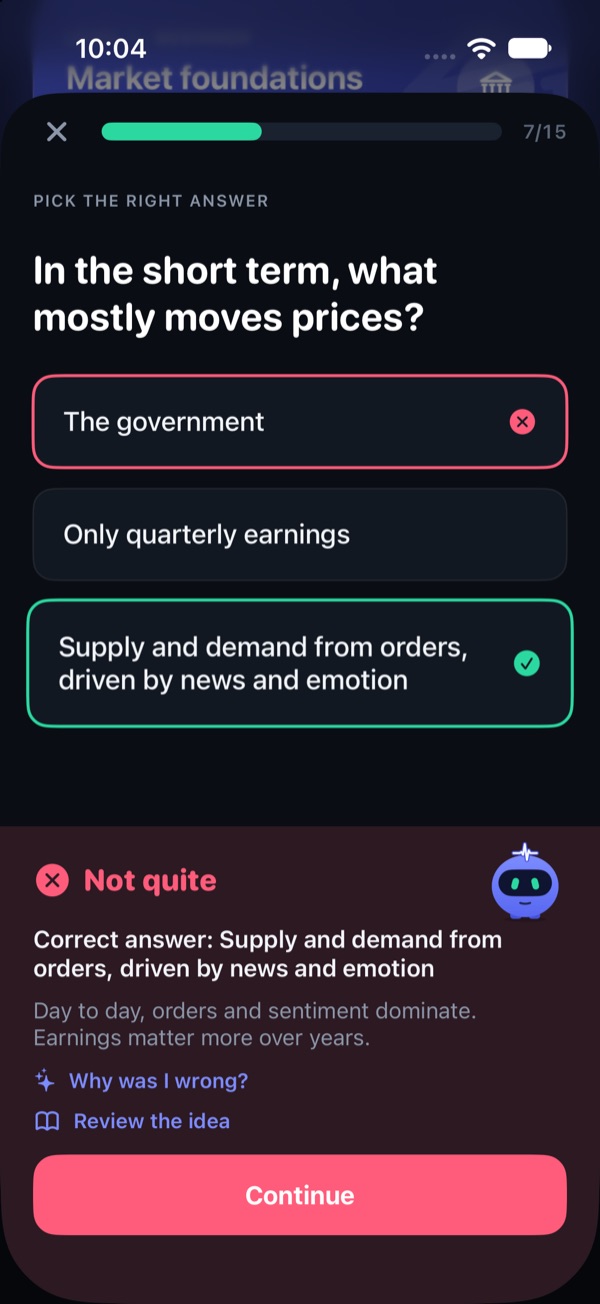
A right answer gets a cheer and the reason it is right. A wrong one shows the correct answer and why, with a button to review the idea. The question comes back at the end of the lesson so you get a second go.

A right answer turns green, with the explanation and Aurel pleased
A wrong answer turns red, shows the correct one with the reason, and Aurel looks kind
Step 6 · Play with it

Move the sliders and watch the numbers change

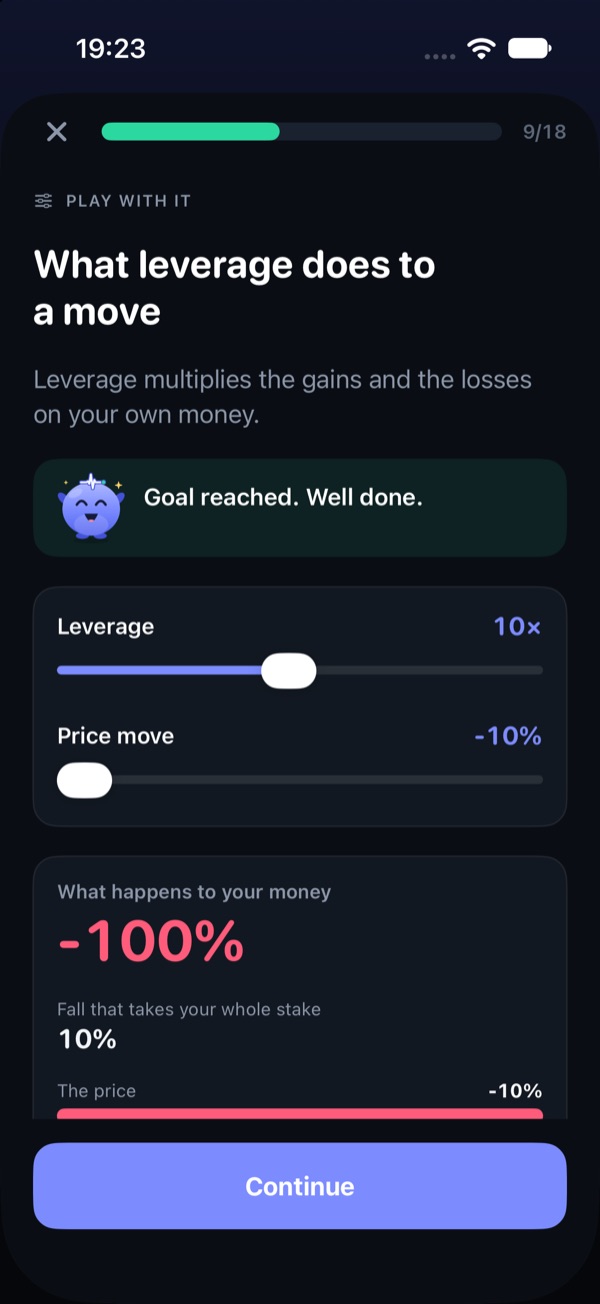
Some lessons turn a formula into a toy. Drag a slider, see what leverage or a fee does to your money, and try to reach the goal. If you get stuck, Show me moves the sliders to the answer.

A Play with it screen: a leverage lesson with two sliders, a live result and a goal that has been reached
Step 7 · Practice

Short games to make it stick

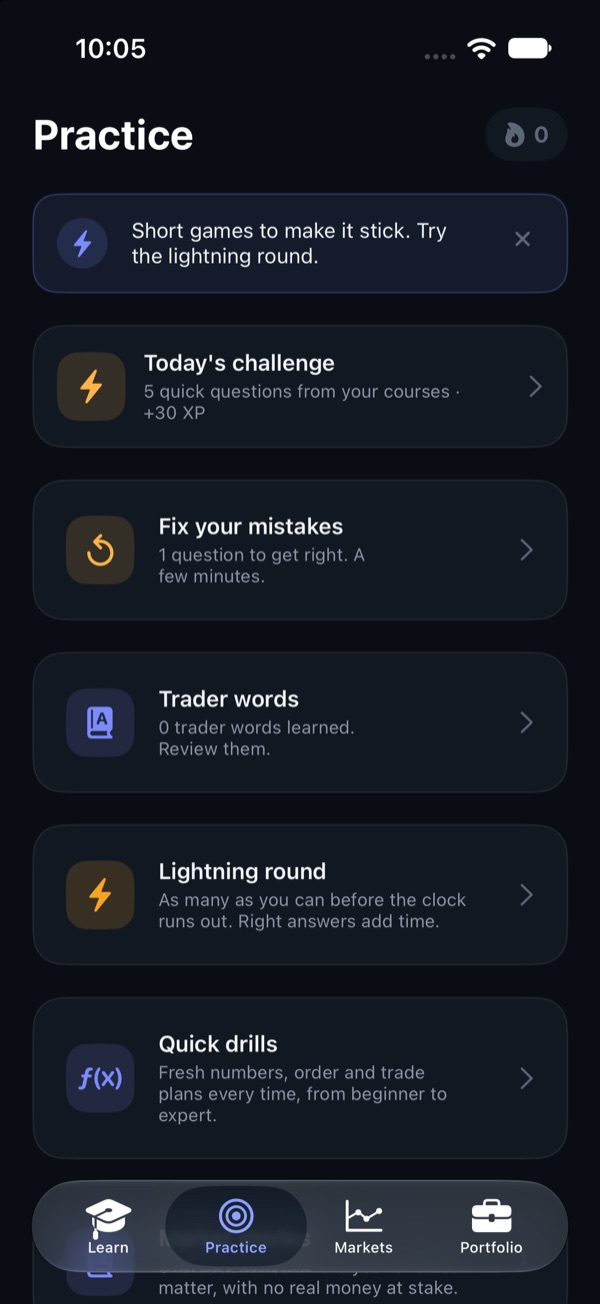
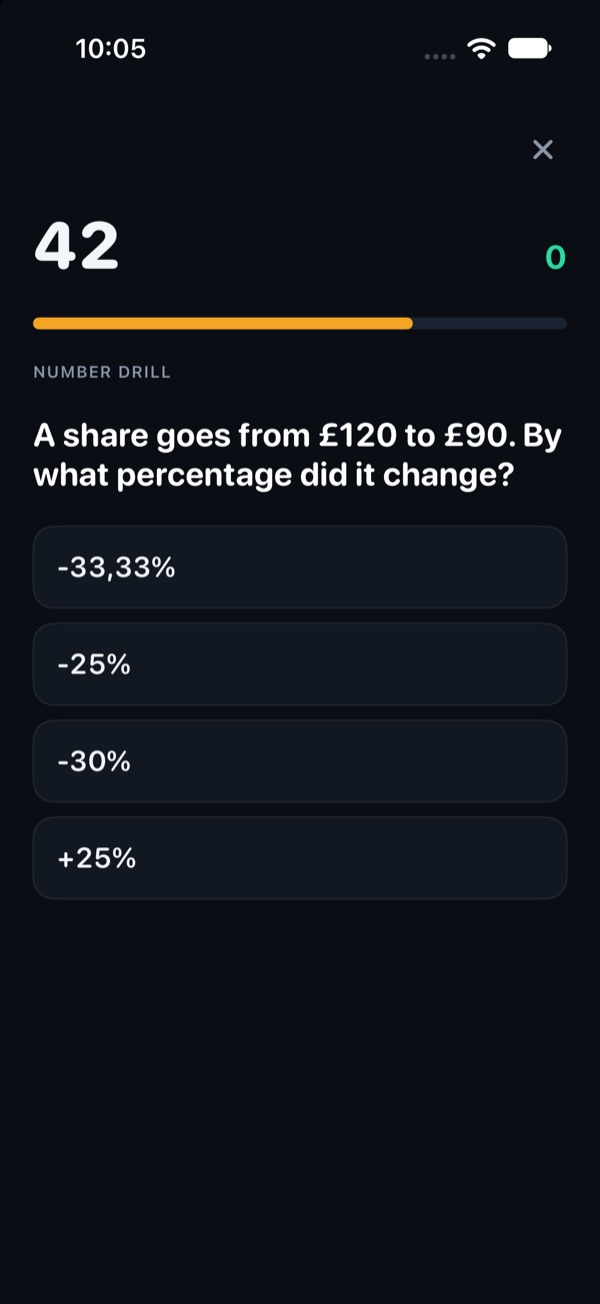
The Practice tab turns what you learned into quick rounds: a daily challenge, your own mistakes to fix, a review of trader words, a timed lightning round and number drills with fresh numbers each time.

The Practice tab: today's challenge, fix your mistakes, trader words, a lightning round and quick drills
A lightning round: a timer, a score and a number drill with four answers
Step 8 · Paper trading

Practise with pretend money on real prices

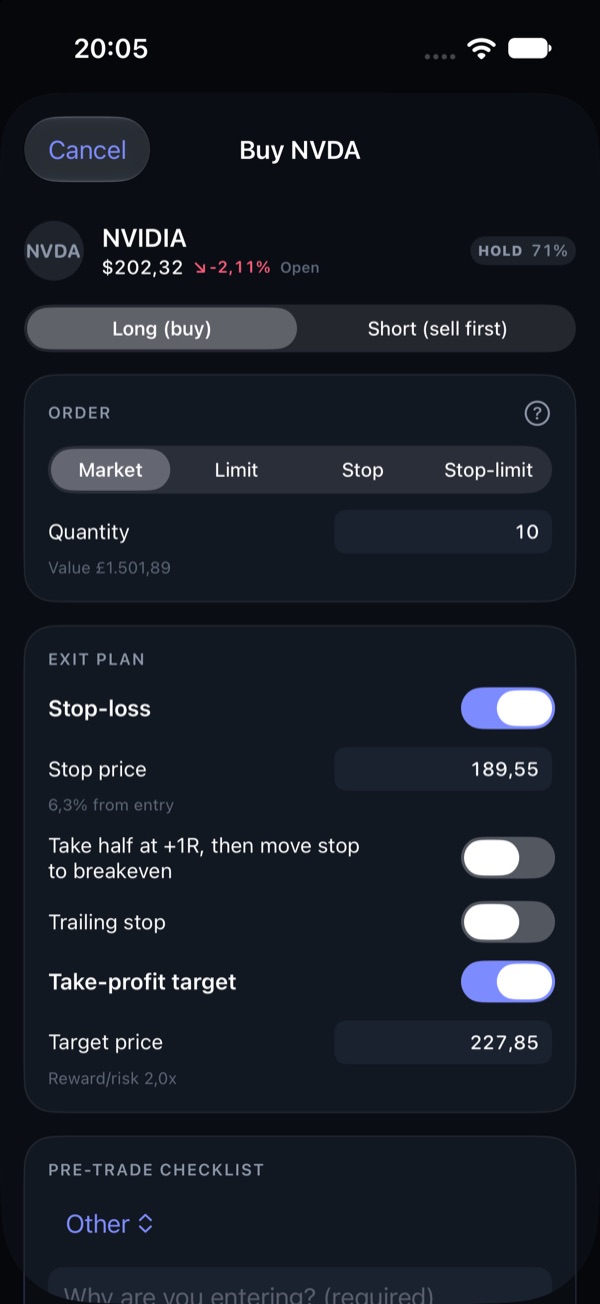
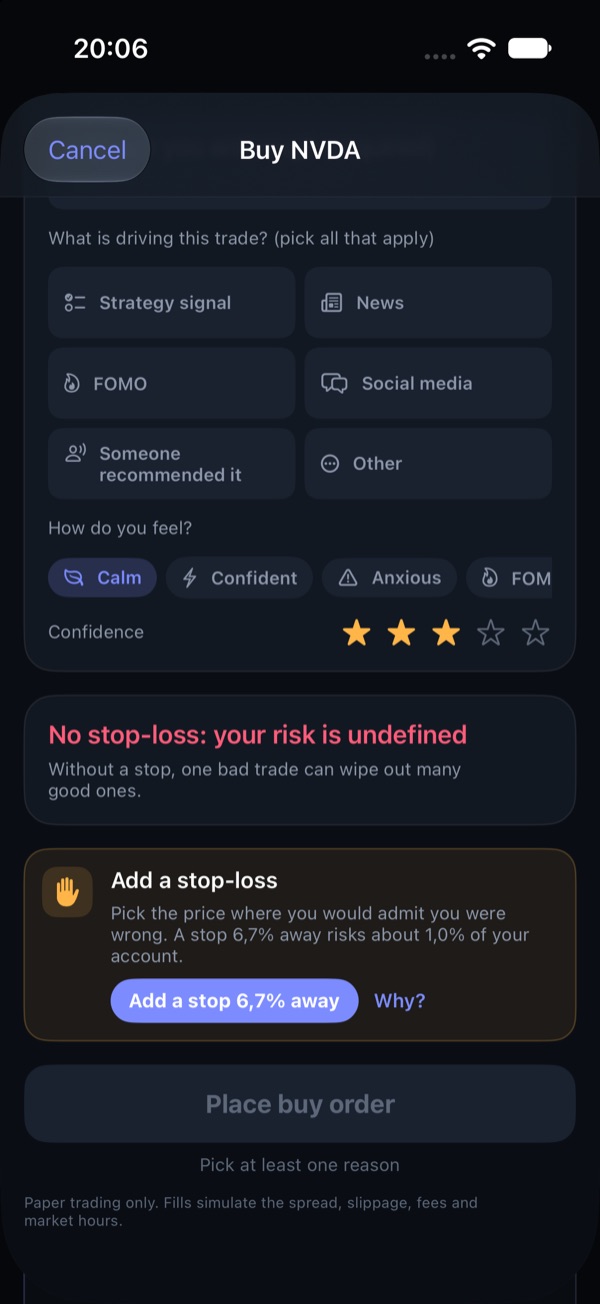
When you are ready, you can place trades in a paper account with £10,000 of pretend money. The ticket helps at the moment you decide: forget a stop-loss and it says so, with one tap to add a sensible one and a link to the lesson that explains why.

The paper trading ticket for buying a share, with a stop-loss and a target filled in
The ticket with the stop-loss switched off, and a help card that offers to add one
Your turn

Tell us what you would change first.

You have seen the whole path. Which screen would you not understand without help? What did you expect to see that is not here?